Building E-Commerce Sites with Handel
Over the years of doing various levels of web-based programming, I’ve come feel like Dante taking a trip through the nine circles of web programmer hell. There are certain things we must endure over and over, from project to project, that seem to take an exorbitant amount of coding to accomplish with little forward progress on the actual project itself. Some of these circles invariably include HTML forms, form validation code, time translation or formatting code, Unicode or encoding code, and, since the dot-com boom, shopping cart/checkout code.
While the CPAN community has solved most of the problems quite nicely with modules like Data::FormValidator, HTML::FillInForm, DateTime, and the various FromForm/QuickForm/FormBuilder modules, I still yearned for a lightweight, straightforward shopping cart module that didn’t involve installed an entire CMS or B2B solution. Thus, Handel.
Later I will show you how to get a functional shopping cart up and running using no lines of code. You heard that correctly: no lines of code. Zero. None. Nada.
What Handel Is
Handel is a set of modules to perform the repetitive tasks associated with creating a shopping cart and a checkout process on the Web in Perl.
This includes the usual actions, such as adding items to the cart, updating item quantity, and removing items, as well as less common features, including saving the current contents of the cart to a wish list and restoring wish lists back into the current shopping cart.
Handel doesn’t just provide shopping carts. It has order add/update features, taglib support for AxKit, plugin support for Template Toolkit, and helper support for Catalyst. It also includes a plugin-based checkout processing pipeline where orders are passed through a step-by-step process that (with the right plugins loaded) can do anything from address validation and shipping calculation to credit-card verification and email/fax order confirmations.
What Handel Is Not
From the beginning, the two main goals of Handel were to be situation-agnostic and to be a set of building blocks, not an out-of-the-box solution.
Handel needed to be reusable from the standpoint that it should be able to interact with your shopping cart’s contents and process an order from anywhere without rewriting the core set of data/processing code. It should be able to get the cart’s contents from within a shell script, from a terminal app, from a web page, or from a web service. E-commerce isn’t always just about putting up a website. Many times, there will be both a front-end, web-based system and a back-end, GUI-based application.
I also decided early on that shopping carts and checkout processes can’t possibly be everything for everyone. While there are many things in common (part numbers and prices), every site has different requirements on how to process an order and the steps necessary to place that order. It is for this reason that the checkout process by itself does absolutely nothing, but instead employs the help of plugins to add requirements or features.
Getting Started
Before you start, you need to have a few things installed from CPAN. These include:
- Perl 5.8.1+
- Handel 0.26+
- Catalyst 5.33+
- Catalyst::View::TT
- HTML::FillInForm 1.04+
- Data::FormValidator 4.00+
- DBD::SQLite
sqlite3
Perl 5.8.1 or greater? What about 5.6.x? Yeah, sorry. While Handel runs on Perl 5.6.1 or greater, Catalyst requires 5.8.1 or newer. That’s a good thing. Now upgrade your Perl version! :-)
Creating the Database
First, you must create the database. For the sake of this experiment^H^H^H^Harticle, I use Sqlite. In the real world, you would probably want to use MySQL/PostgreSQL instead.
Download the handel.sqlite.sql schema script to your hard drive. Now, in your favorite shell, type the following to create the database:
[claco@cypher ~] $ wget https://fastapi.metacpan.org/source/CLACO/Handel-1.00014/sql/handel.sqlite.sql
handel.sqlite.sql                             100% of 2300  B  115 kBps
[claco@cypher ~] $
[claco@cypher ~] $ sqlite3 handel.db < handel.sqlite.sql
[claco@cypher ~] $
This should have created an sqlite v3 database in your working directory. Remember this file name and location. You’re going to need it to set up the DSN.
Creating the Application
If you haven’t used or even heard about Catalyst yet, now is probably a good time to read Jesse Sheidlower’s article introducing the Catalyst MVC framework. Because Handel isn’t bound to any specific front-end GUI, you need to use other tools to interact with the data. For the purposes of this introduction, Catalyst will provide the front-end web interface for use.
To create the new web application, simply call catalyst.pl, passing it the name of the new application. Make sure to do this in the directory in which you wish to have the new application’s directory created.
$ catalyst.pl MyStore
You should end up with output resembling:
[claco@cypher ~] $ catalyst.pl MyStore
created "MyStore"
created "MyStore/script"
created "MyStore/lib"
created "MyStore/root"
created "MyStore/t"
created "MyStore/t/M"
created "MyStore/t/V"
created "MyStore/t/C"
created "MyStore/lib/MyStore"
created "MyStore/lib/MyStore/M"
created "MyStore/lib/MyStore/V"
created "MyStore/lib/MyStore/C"
created "MyStore/lib/MyStore.pm"
created "MyStore/Build.PL"
created "MyStore/Makefile.PL"
created "MyStore/README"
created "MyStore/Changes"
created "MyStore/t/01app.t"
created "MyStore/t/02pod.t"
created "MyStore/t/03podcoverage.t"
created "MyStore/script/mystore_cgi.pl"
created "MyStore/script/mystore_fastcgi.pl"
created "MyStore/script/mystore_server.pl"
created "MyStore/script/mystore_test.pl"
created "MyStore/script/mystore_create.pl"
[claco@cypher ~] $
Now run the newly created application, just to see what you have so far. In your terminal, change directory into the newly created app and start its server:
[claco@cypher ~] $ cd MyStore
[claco@cypher ~/MyStore] $ script/mystore_server.pl
You should see a bunch of debugging information streaming to the console:
[Wed Sep 21 19:19:16 2005] [catalyst] [debug] Debug messages enabled
[Wed Sep 21 19:19:16 2005] [catalyst] [debug] Loaded dispatcher
    "Catalyst::Dispatcher"
[Wed Sep 21 19:19:16 2005] [catalyst] [debug] Loaded engine
    "Catalyst::Engine::HTTP"
[Wed Sep 21 19:19:16 2005] [catalyst] [debug] Found home
    "/usr/home/claco/MyStore"
[Wed Sep 21 19:19:16 2005] [catalyst] [debug] Loaded private actions:
.=-------------------------------------+--------------------------------------=.
| Private                              | Class                                 |
|=-------------------------------------+--------------------------------------=|
| /default                             | MyStore                               |
'=-------------------------------------+--------------------------------------='

[Wed Sep 21 19:19:16 2005] [catalyst] [info] MyStore powered by Catalyst 5.33
You can connect to your server at http://localhost:3000/
Now point your browser to the address listed in the debug output. This is usually http://localhost:3000/. If everything is working properly, you should have a nice new shiny web application looking something like Figure 1.
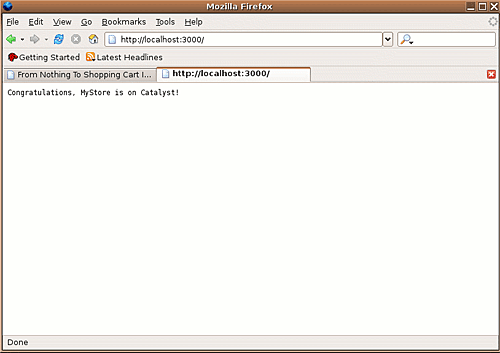 *Figure 1. A NewStore application*
Of course, your new store doesn’t do anything yet. :-) It’s time to fix that. Stop the application by hitting CTRL-C.
^C
[claco@cypher ~/MyStore] $
Flip The More Magic Switch
Now it’s time for the magic. Handel comes with a set of helpers for Catalyst. A helper is a module that Catalyst loads when running the create.pl script. The helpers generate TT template files; controller, model, or view modules; and just about anything else you can code into one.
Because this is a new web application, Handel can create the cart, the checkout process, and the order views using Handel::Scaffold. Handel::Scaffold is a meta-helper that uses other individual helpers to get the job done. If you want to add cart/order/checkout features to an existing Catalyst application, use the individual Catalyst helpers to create just the cart or just the checkout functionality.
Back in the terminal, use MyStore’s create script to call Handel::Scaffold, passing it the DSN for the database created earlier:
[claco@cypher ~/MyStore] $ script/mystore_create.pl Handel::Scaffold \
    dbi:SQLite:dbname=/home/claco/handel.db
Once again, you will see some output scroll by:
created "/usr/home/claco/MyStore/script/../lib/MyStore/V/TT.pm"
created "/usr/home/claco/MyStore/script/../t/V/TT.t"
created "/usr/home/claco/MyStore/script/../lib/MyStore/M/Cart.pm"
created "/usr/home/claco/MyStore/script/../t/M/Cart.t"
created "/usr/home/claco/MyStore/script/../lib/MyStore/M/Orders.pm"
created "/usr/home/claco/MyStore/script/../t/M/Orders.t"
created "/usr/home/claco/MyStore/script/../root/cart"
created "/usr/home/claco/MyStore/script/../lib/MyStore/C/Cart.pm"
created "/usr/home/claco/MyStore/script/../root/cart/view.tt"
created "/usr/home/claco/MyStore/script/../root/cart/list.tt"
created "/usr/home/claco/MyStore/script/../t/C/Cart.t"
created "/usr/home/claco/MyStore/script/../root/orders"
created "/usr/home/claco/MyStore/script/../lib/MyStore/C/Orders.pm"
created "/usr/home/claco/MyStore/script/../root/orders/list.tt"
created "/usr/home/claco/MyStore/script/../root/orders/view.tt"
created "/usr/home/claco/MyStore/script/../t/C/Orders.t"
created "/usr/home/claco/MyStore/script/../root/checkout"
created "/usr/home/claco/MyStore/script/../lib/MyStore/C/Checkout.pm"
created "/usr/home/claco/MyStore/script/../root/checkout/edit.tt"
created "/usr/home/claco/MyStore/script/../root/checkout/preview.tt"
created "/usr/home/claco/MyStore/script/../root/checkout/payment.tt"
created "/usr/home/claco/MyStore/script/../root/checkout/complete.tt"
created "/usr/home/claco/MyStore/script/../t/C/Checkout.t"
[claco@cypher ~/MyStore] $
That’s it! You now have a shopping cart, an order list/view, and a checkout process framework without writing a single line of code!
Exploring the Results
I’m sure that you want to explore some of the features of your newly created codebase. Start the web application again:
[claco@cypher ~/MyStore] $ script/mystore_server.pl
When the application starts this time, there’s quite a bit more output:
[Wed Sep 21 20:10:04 2005] [catalyst] [debug] Debug messages enabled
[Wed Sep 21 20:10:04 2005] [catalyst] [debug] Loaded dispatcher
    "Catalyst::Dispatcher"
[Wed Sep 21 20:10:04 2005] [catalyst] [debug] Loaded engine
    "Catalyst::Engine::HTTP"
[Wed Sep 21 20:10:04 2005] [catalyst] [debug] Found home
    "/usr/home/claco/MyStore"
[Wed Sep 21 20:10:05 2005] [catalyst] [debug] Loaded components:
.=----------------------------------------------------------------------------=.
| MyStore::C::Cart                                                            |
| MyStore::C::Checkout                                                        |
| MyStore::C::Orders                                                          |
| MyStore::M::Cart                                                            |
| MyStore::M::Orders                                                          |
| MyStore::V::TT                                                              |
'=----------------------------------------------------------------------------='

[Wed Sep 21 20:10:05 2005] [catalyst] [debug] Loaded private actions:
.=-------------------------------------+--------------------------------------=.
| Private                              | Class                                 |
|=-------------------------------------+--------------------------------------=|
| /default                             | MyStore                               |
| /cart/add                            | MyStore::C::Cart                      |
| /cart/clear                          | MyStore::C::Cart                      |
| /cart/restore                        | MyStore::C::Cart                      |
| /cart/default                        | MyStore::C::Cart                      |
| /cart/end                            | MyStore::C::Cart                      |
| /cart/save                           | MyStore::C::Cart                      |
| /cart/view                           | MyStore::C::Cart                      |
| /cart/delete                         | MyStore::C::Cart                      |
| /cart/empty                          | MyStore::C::Cart                      |
| /cart/begin                          | MyStore::C::Cart                      |
| /cart/destroy                        | MyStore::C::Cart                      |
| /cart/update                         | MyStore::C::Cart                      |
| /cart/list                           | MyStore::C::Cart                      |
| /orders/view                         | MyStore::C::Orders                    |
| /orders/default                      | MyStore::C::Orders                    |
| /orders/begin                        | MyStore::C::Orders                    |
| /orders/list                         | MyStore::C::Orders                    |
| /orders/end                          | MyStore::C::Orders                    |
| /checkout/payment                    | MyStore::C::Checkout                  |
| /checkout/default                    | MyStore::C::Checkout                  |
| /checkout/edit                       | MyStore::C::Checkout                  |
| /checkout/end                        | MyStore::C::Checkout                  |
| /checkout/preview                    | MyStore::C::Checkout                  |
| /checkout/begin                      | MyStore::C::Checkout                  |
| /checkout/update                     | MyStore::C::Checkout                  |
| /checkout/complete                   | MyStore::C::Checkout                  |
'=-------------------------------------+--------------------------------------='

[Wed Sep 21 20:10:05 2005] [catalyst] [debug] Loaded public actions:
.=-------------------------------------+--------------------------------------=.
| Public                               | Private                               |
|=-------------------------------------+--------------------------------------=|
| /cart/add                            | /cart/add                             |
| /cart/clear                          | /cart/clear                           |
| /cart/delete                         | /cart/delete                          |
| /cart/destroy                        | /cart/destroy                         |
| /cart/empty                          | /cart/empty                           |
| /cart/list                           | /cart/list                            |
| /cart/restore                        | /cart/restore                         |
| /cart/save                           | /cart/save                            |
| /cart/update                         | /cart/update                          |
| /cart/view                           | /cart/view                            |
| /checkout/complete                   | /checkout/complete                    |
| /checkout/default                    | /checkout/default                     |
| /checkout/edit                       | /checkout/edit                        |
| /checkout/payment                    | /checkout/payment                     |
| /checkout/preview                    | /checkout/preview                     |
| /checkout/update                     | /checkout/update                      |
| /orders/list                         | /orders/list                          |
| /orders/view                         | /orders/view                          |
'=-------------------------------------+--------------------------------------='

[Wed Sep 21 20:10:05 2005] [catalyst] [info] MyStore powered by Catalyst 5.33
You can connect to your server at http://localhost:3000/
Cart, orders, checkout. Oh my!
The Shopping Cart
The shopping cart code base includes the usual actions: add, update, delete, and empty, as well as the ability to save the cart’s contents and restore a saved cart back into the current cart. To try it out, you need to add something to the cart!
Download the test products page and load it in a browser of your choice (Figure 2).
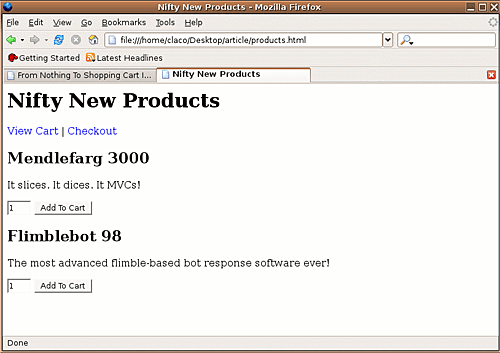 *Figure 2. The product page*
Once you load the page, pick a hot new product and click Add To Cart (Figure 3). By default, the product’s page points to http://localhost:3000/cart/. You may have to alter the page’s contents to match the address of the MyStore server.
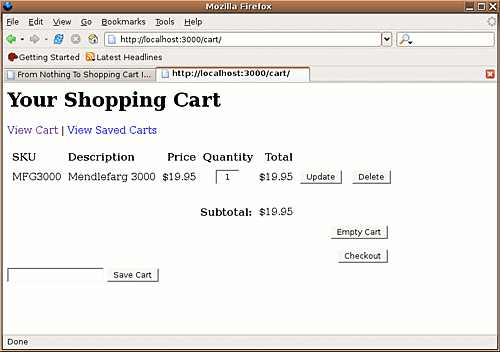 *Figure 3. The shopping cart page*
Save this cart. Hit the Save Cart button and leave the field next to it blank.
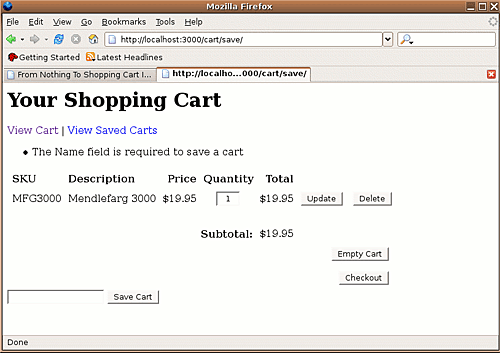 *Figure 4. The shopping cart with an error*
Take note of the error at the top of the page in Figure 4–“The Name field is required to save a cart.” The code and template generated by Handel uses Data::FormValidator and HTML::FillInForm where appropriate. Not only didn’t you have to write any cart code, you didn’t have to write and forms validation code either!
Go ahead and enter a name for your saved cart and hit Save Cart again. If all goes well, Handel saves the shopping cart’s contents into a list under the name specified in the Name field. To view the list of saved shopping carts, click View Saved Carts at the top of the page (Figure 5).
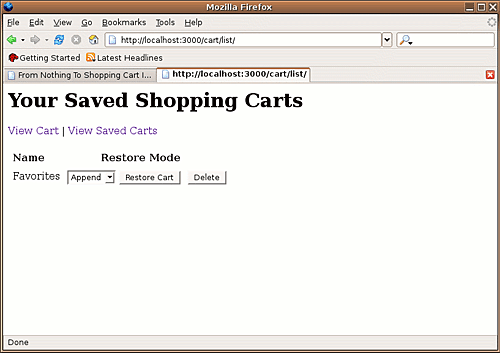 *Figure 5. Viewing saved carts*
When restoring wish lists, there are three options: Append, Merge, and Replace. As the titles imply, Append simply adds the saved cart items to the current cart. There is no attempt made to prevent duplicate parts. Merge adds the saved cart’s contents into the current cart. If it finds a part with the same identifier, it adds the quantity of the two parts together. Replace empties the current cart and them restores the saved cart’s contents.
Because the cart is currently empty, select any of those methods and hit Restore Cart. You should be back at the cart page with your cart items restored.
Checkout
On the cart page, hit the Checkout button. This will take you to the BillTo/ShipTo edit screen (Figure 6).
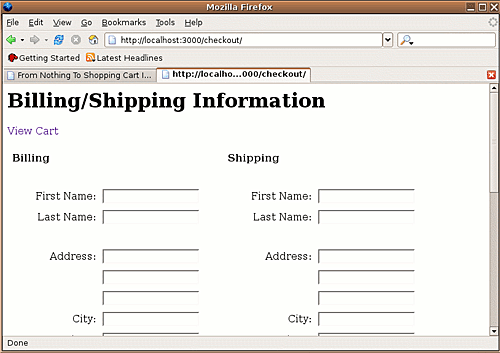 *Figure 6. The BillTo/ShipTo page*
In either of the first name fields, enter your first name. Scroll to the bottom of the page and click Continue. If everything is working correctly, you should see a page resembling Figure 7.
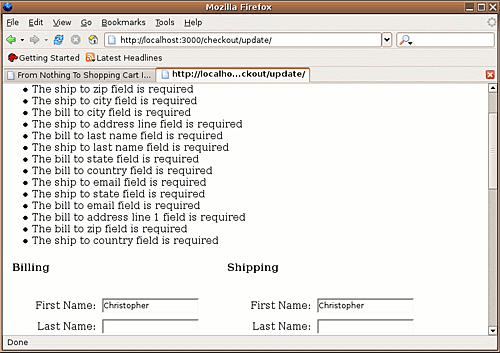 *Figure 7. An error in billing/shipping*
Once again, the generated code from Handel has taken care of validating required form fields for you and the fill-in forms kept the data you entered, all without writing any code. (Noticing a theme yet?)
Take some time on your own to work your way through the rest of the checkout process. This includes a preview page, the credit card payment page, and an order completion page. Once you’ve completed your order, you should receive a “thank you” page with links to view all of your orders (Figure 8).
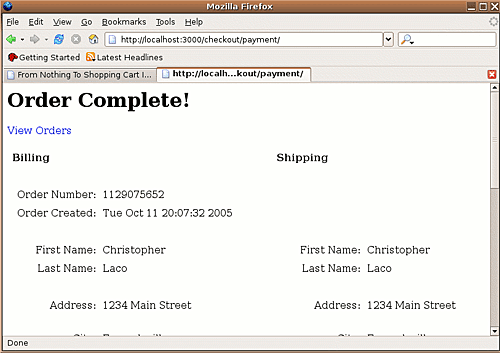 *Figure 8. The Order Complete page*
Orders List
Last but not least, check out the orders list. On your order completion screen, click on the View Orders link. Here you will find a list of any orders you have placed (Figure 9). Click the View Order link next to any order for more details about that order (Figure 10).
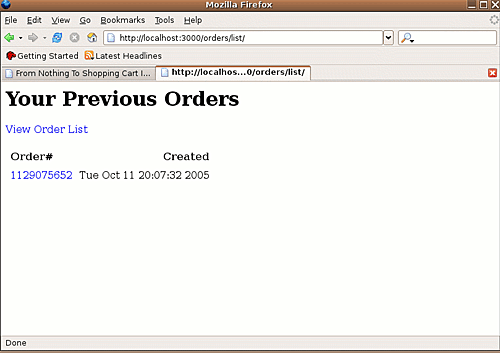 *Figure 9. The Orders List page.*
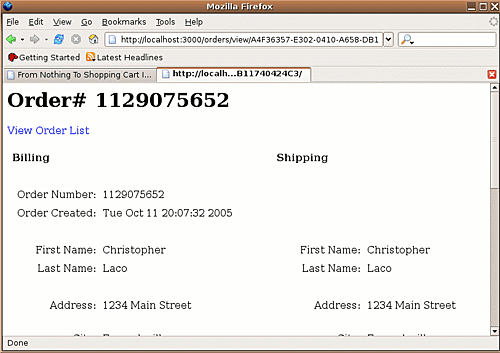 *Figure 10. The order details page*
Where To Go From Here
As you’ve hopefully seen in the article, by combining the powers of Handel and Catalyst, you need not suffer through the dreary task of writing another shopping cart from scratch ever again. With the plugin architecture Handel provides, you will find that you can do even the more complicated checkout tasks using nothing more than a few lines of code to glue various business modules into plugins.
With Handel as the core, we can look forward to new and improved Perl-based E-commerce solutions and new ways to add E-commerce features to existing projects without having to reinvent the wheel–again!
Tags
Feedback
Something wrong with this article? Help us out by opening an issue or pull request on GitHub